Apple Wallet
Digital Card Activation Guide
Add new Perx® Digital Card to Apple Wallet
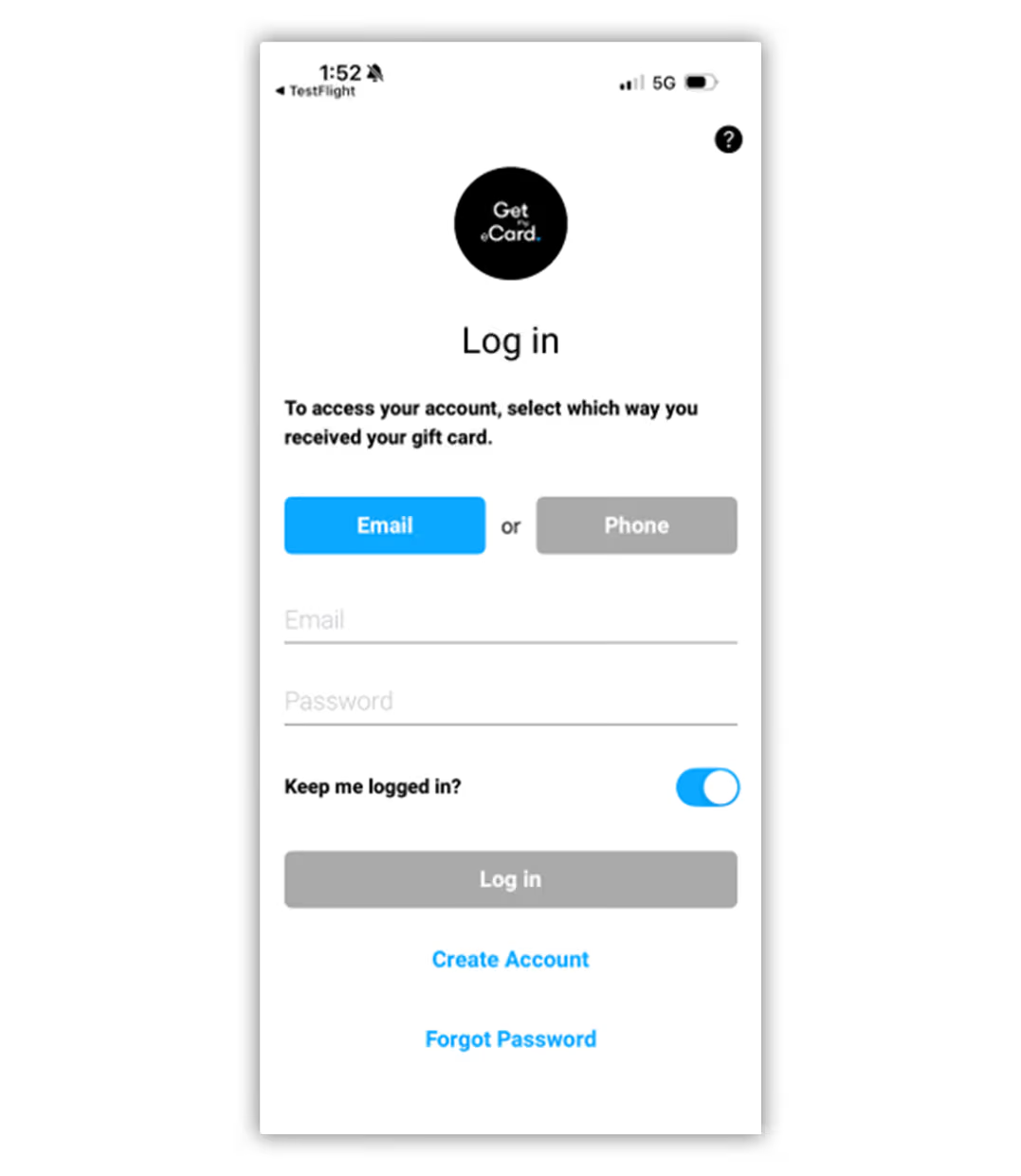
Account Creation/ Log In
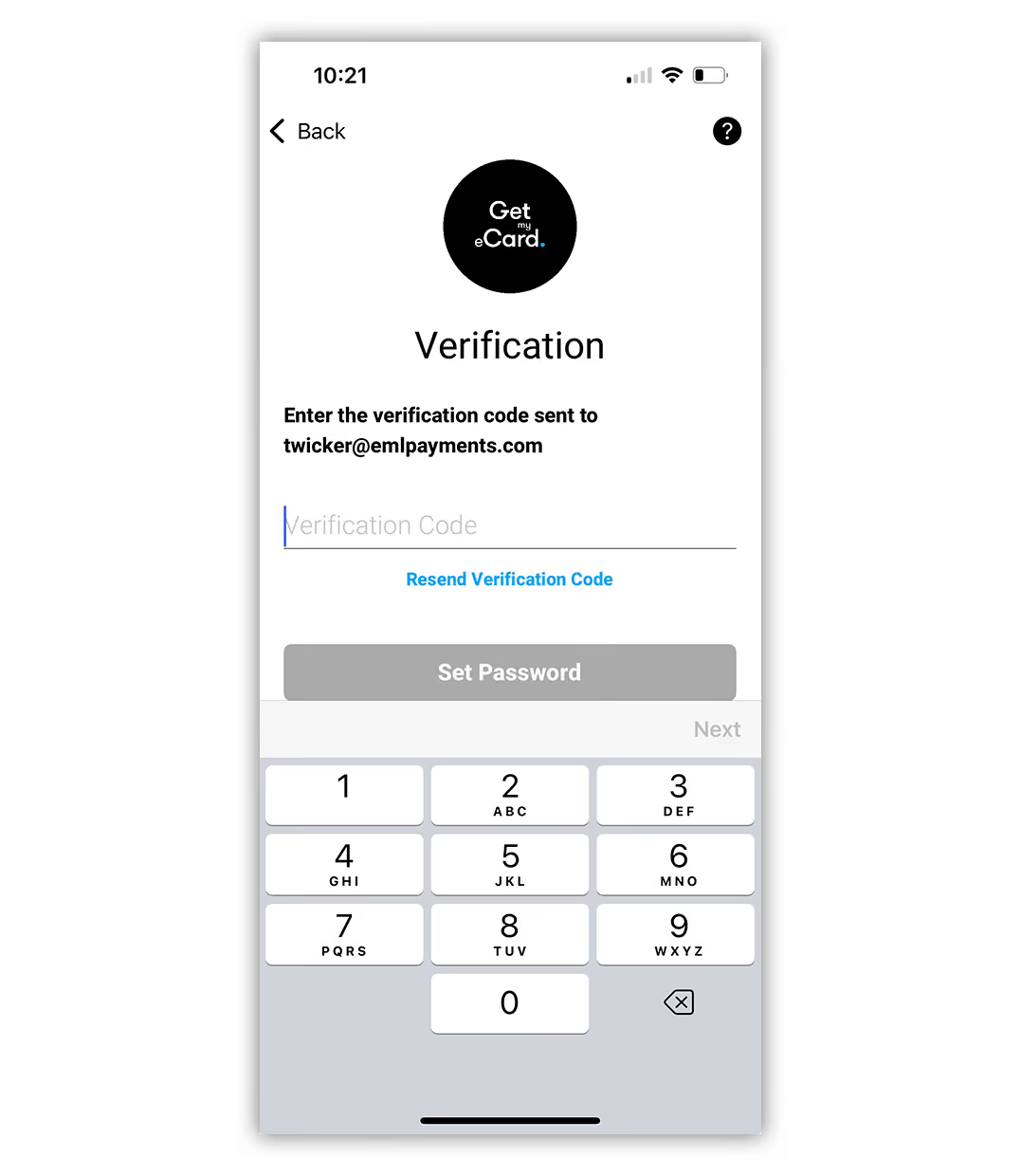
Enter Verification code
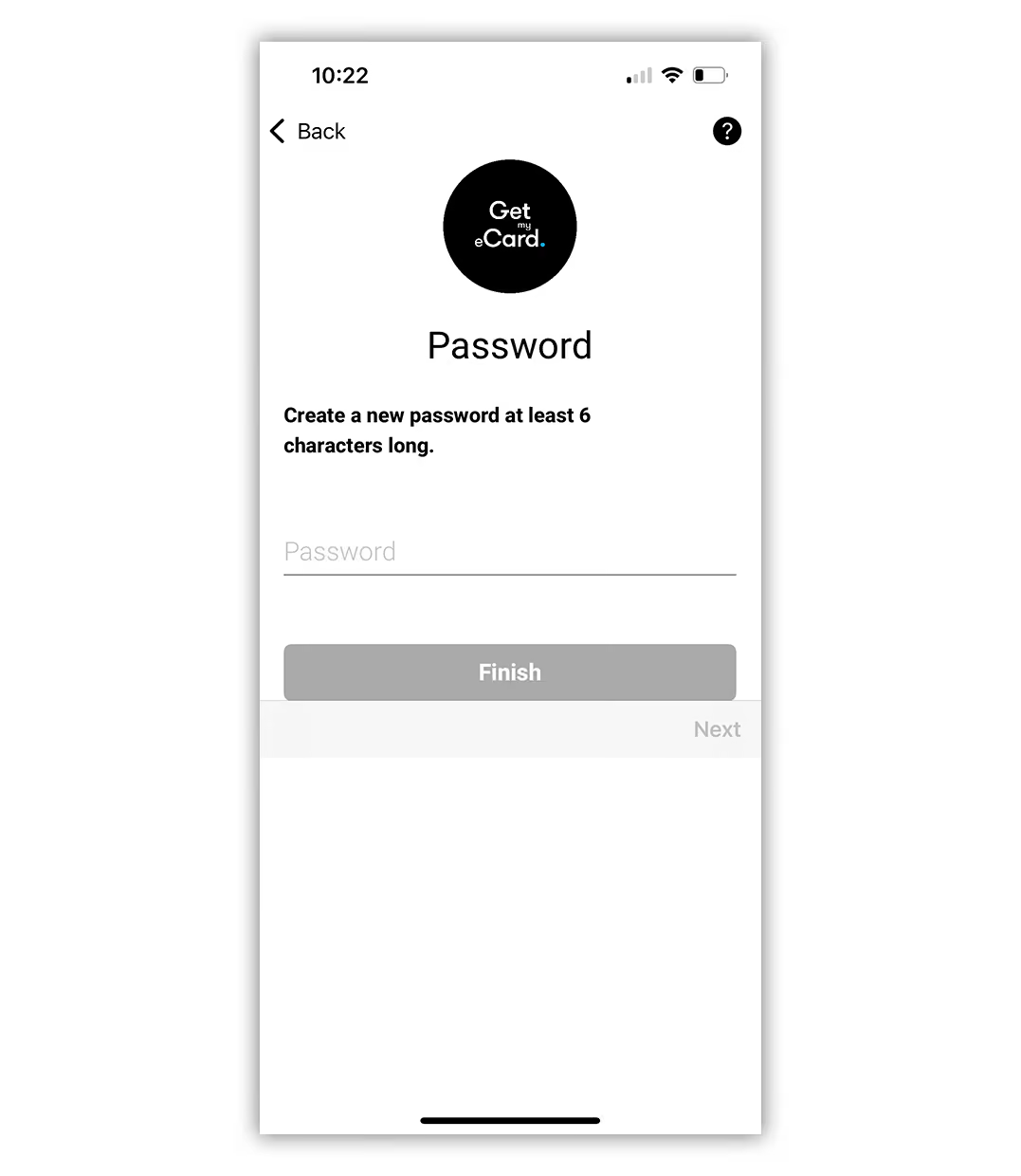
Enter / Create password
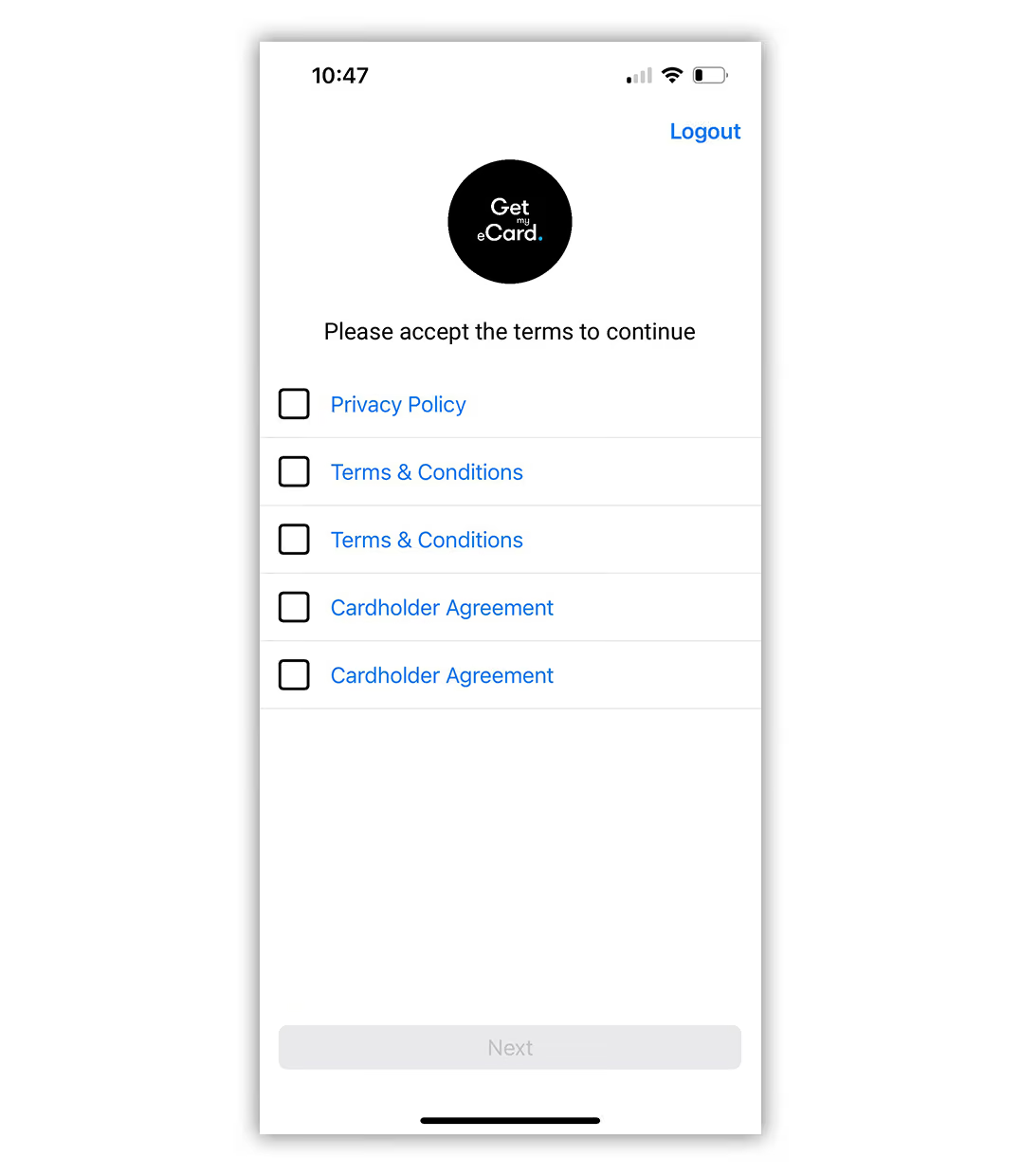
Click the links to view the T&Cs, then click the checkbox to accept
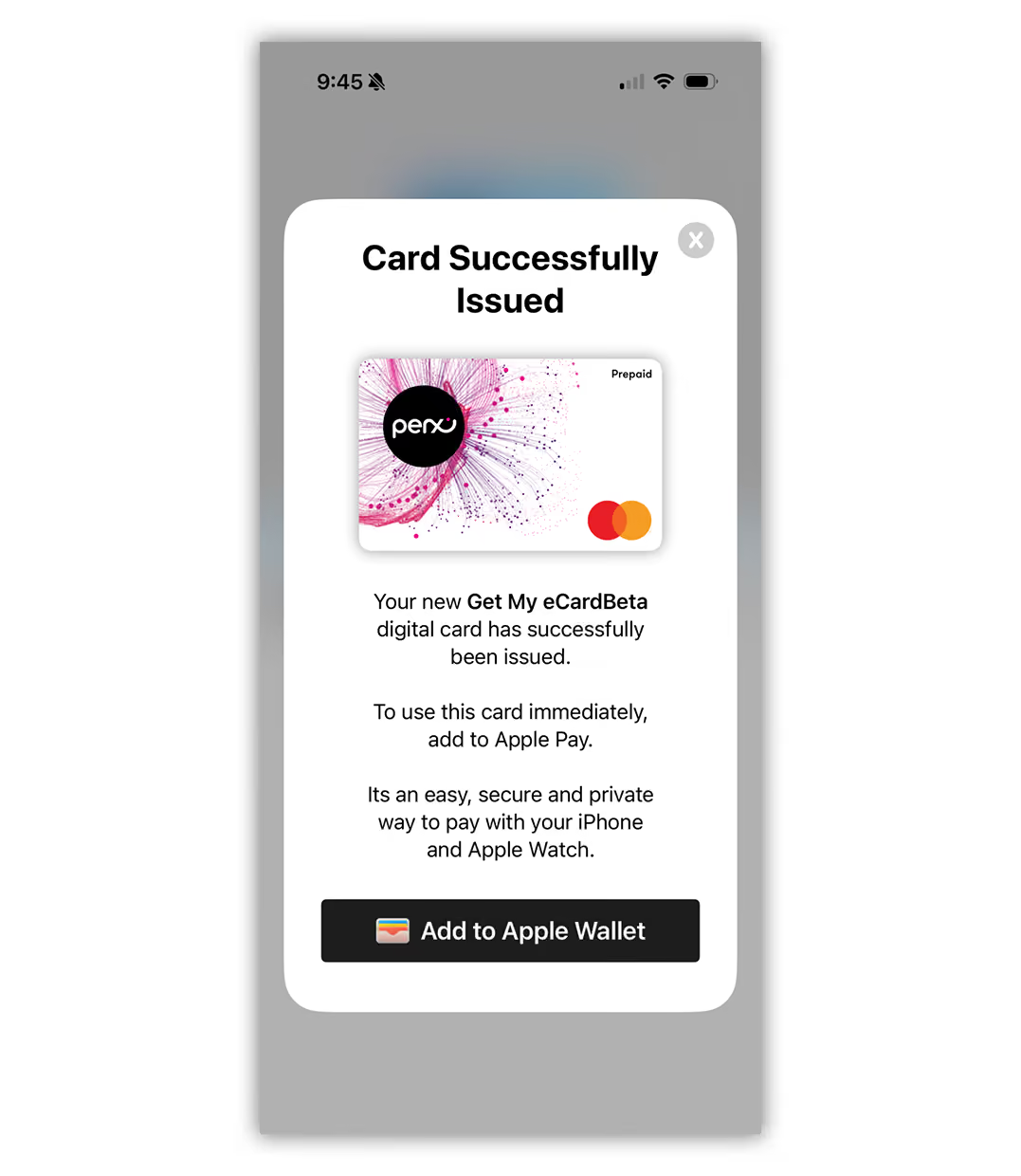
Following T&C acceptance, the ‘Card Successfully Issued’ pop up message will appear. Click ‘Add to Apple Wallet’
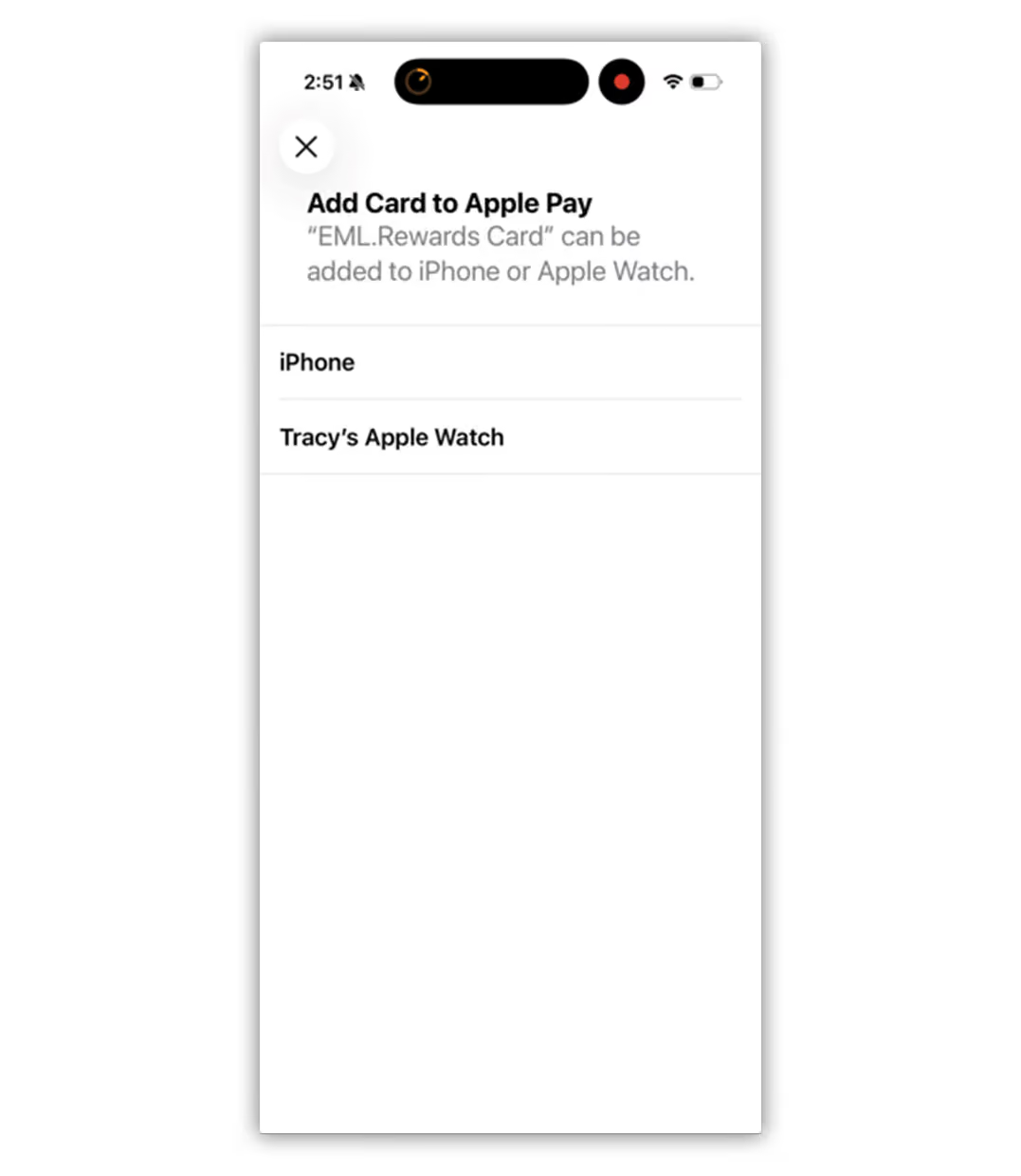
Select device to add card
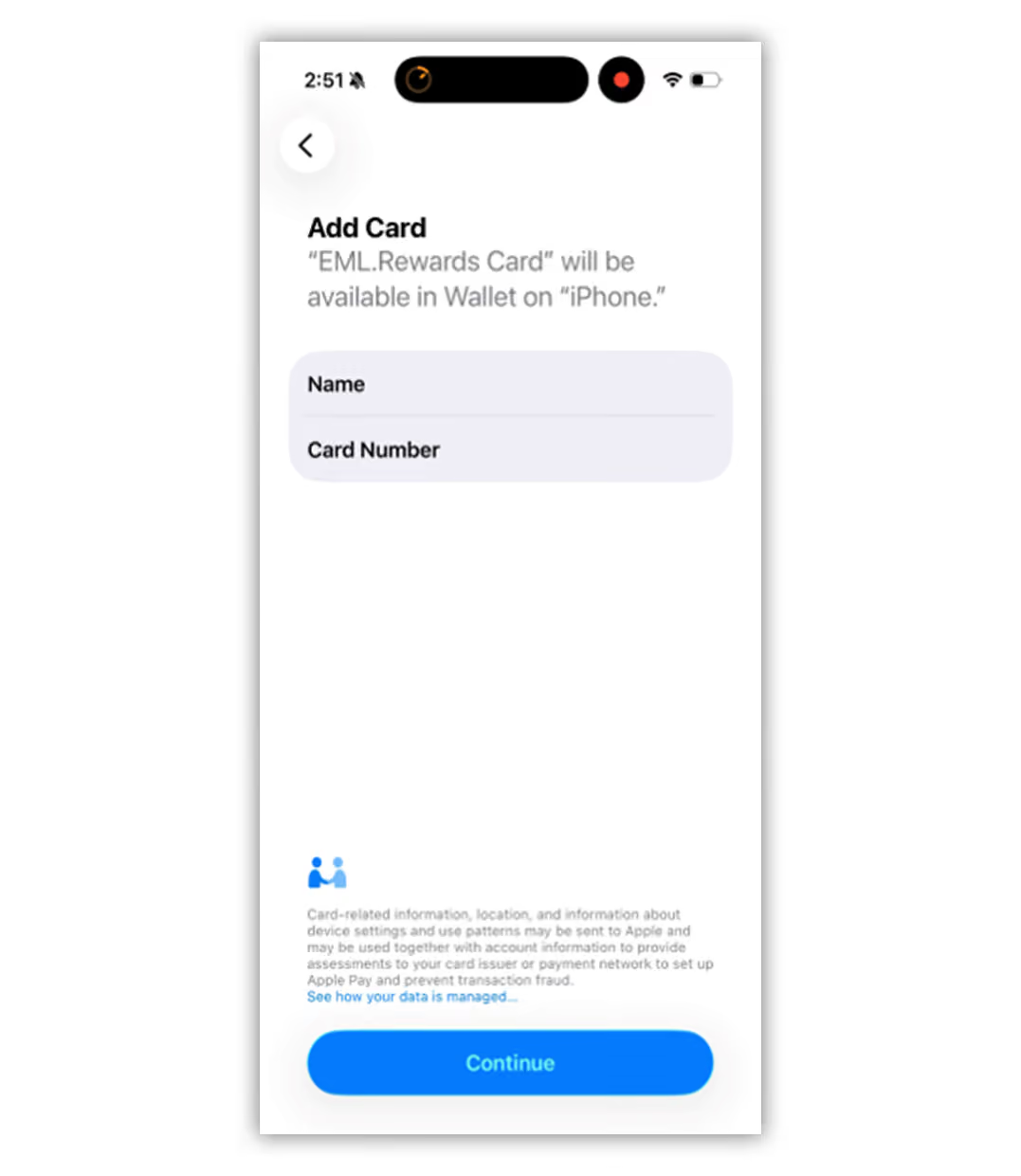
Select ‘Continue’
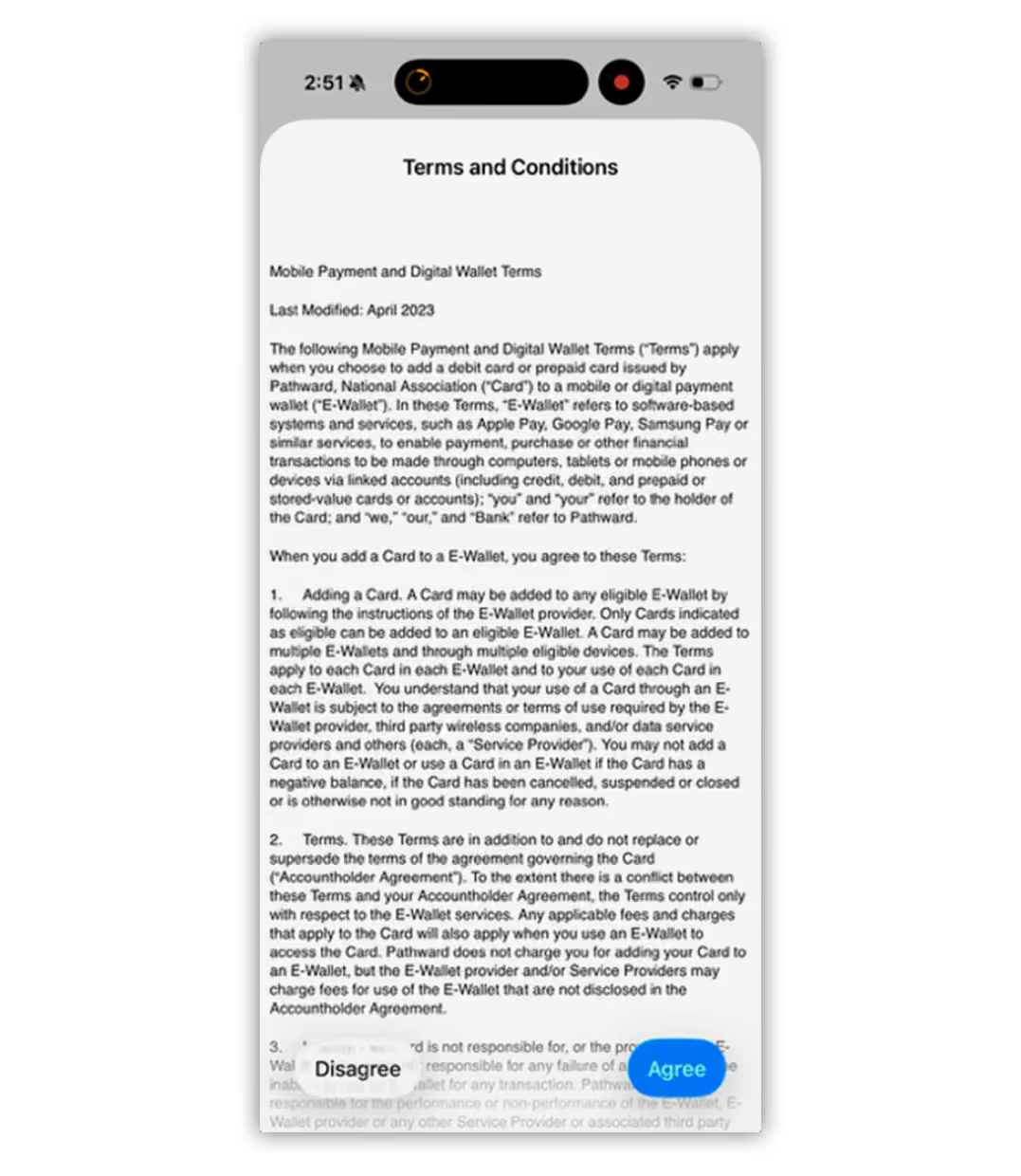
Select ‘Agree’
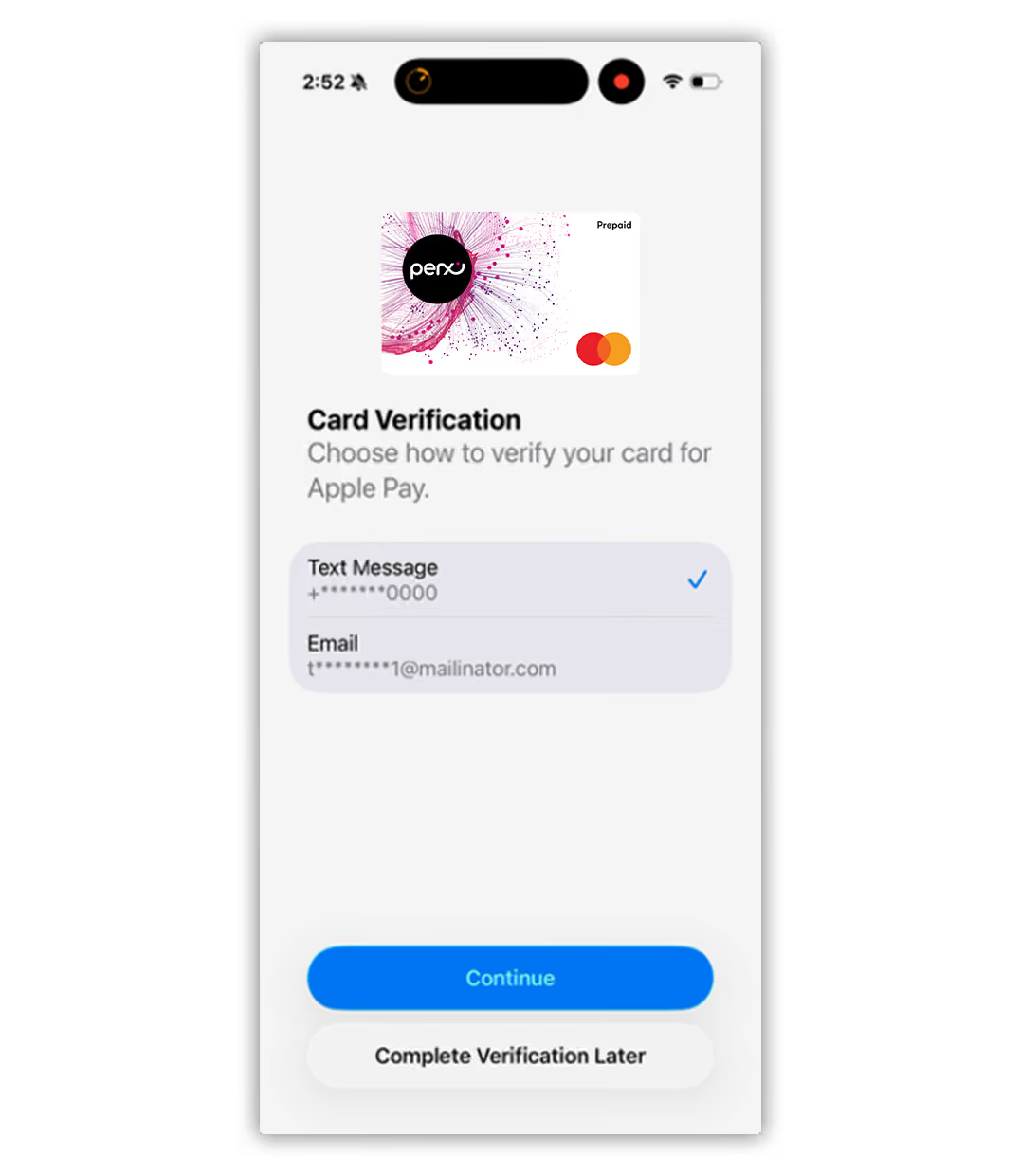
Select preferred delivery method to receive code and ‘Continue’
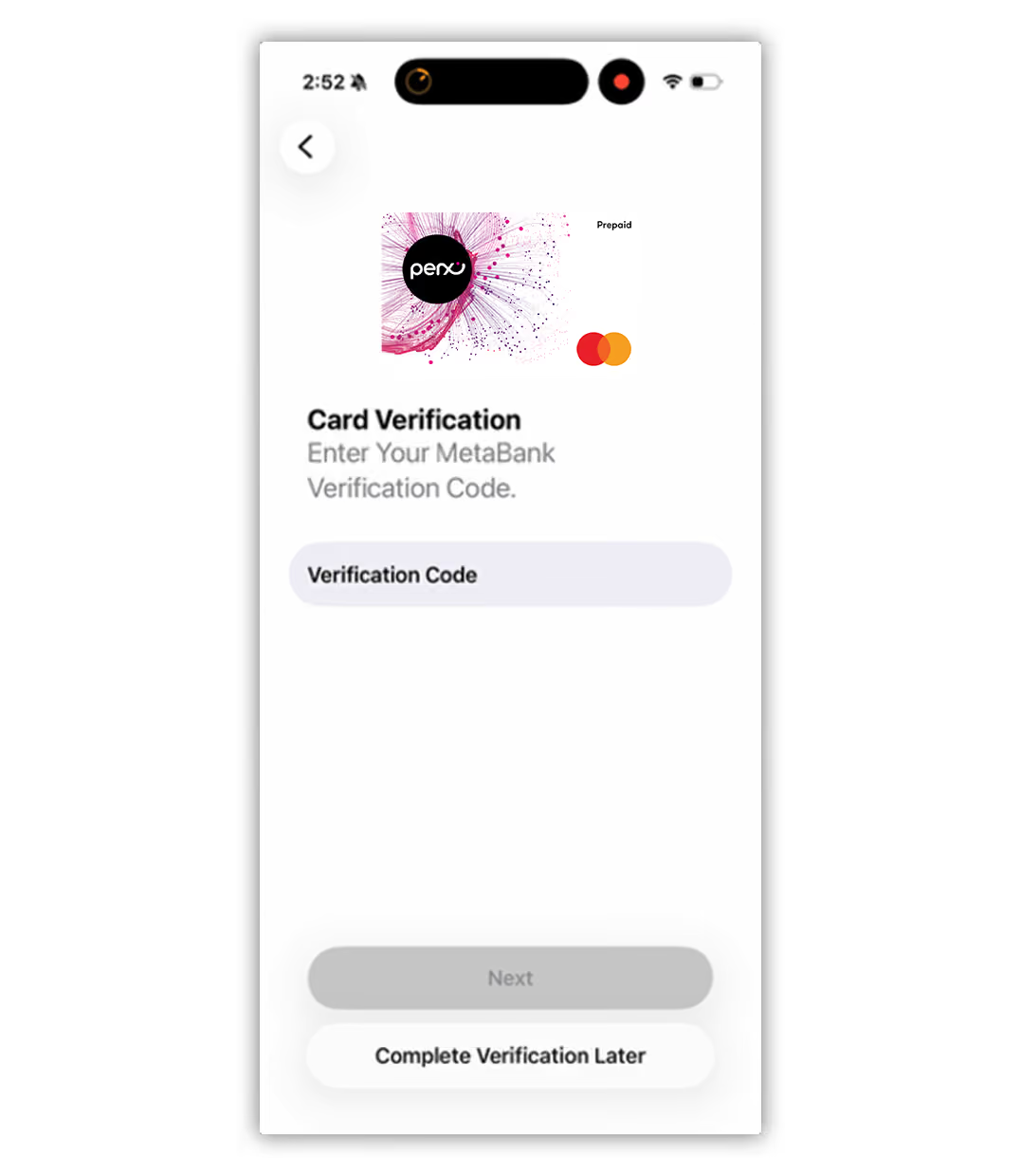
Enter verification code
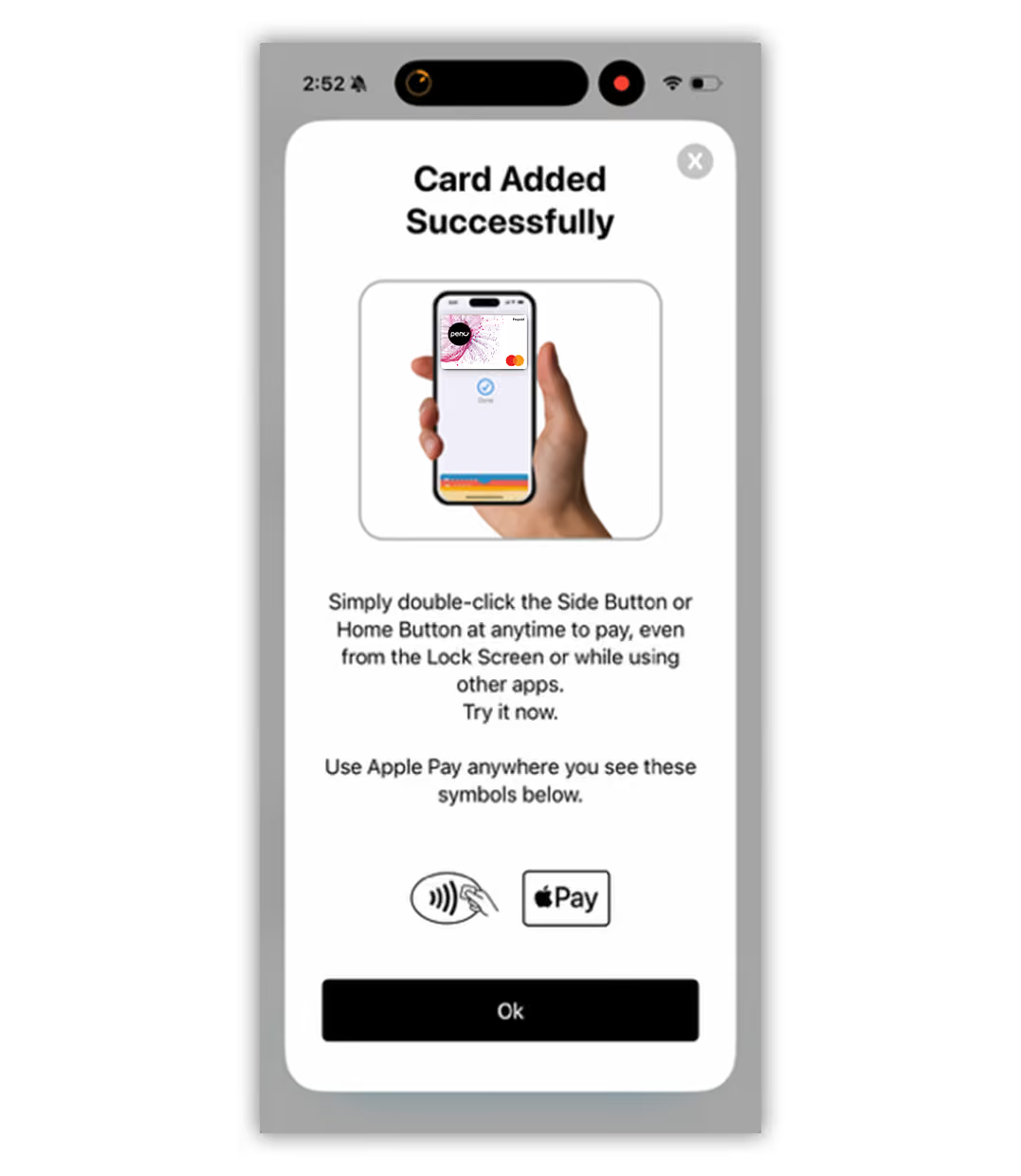
Following verification code, the ‘Card Added Successfully’ pop up message will appear. Click ‘OK’
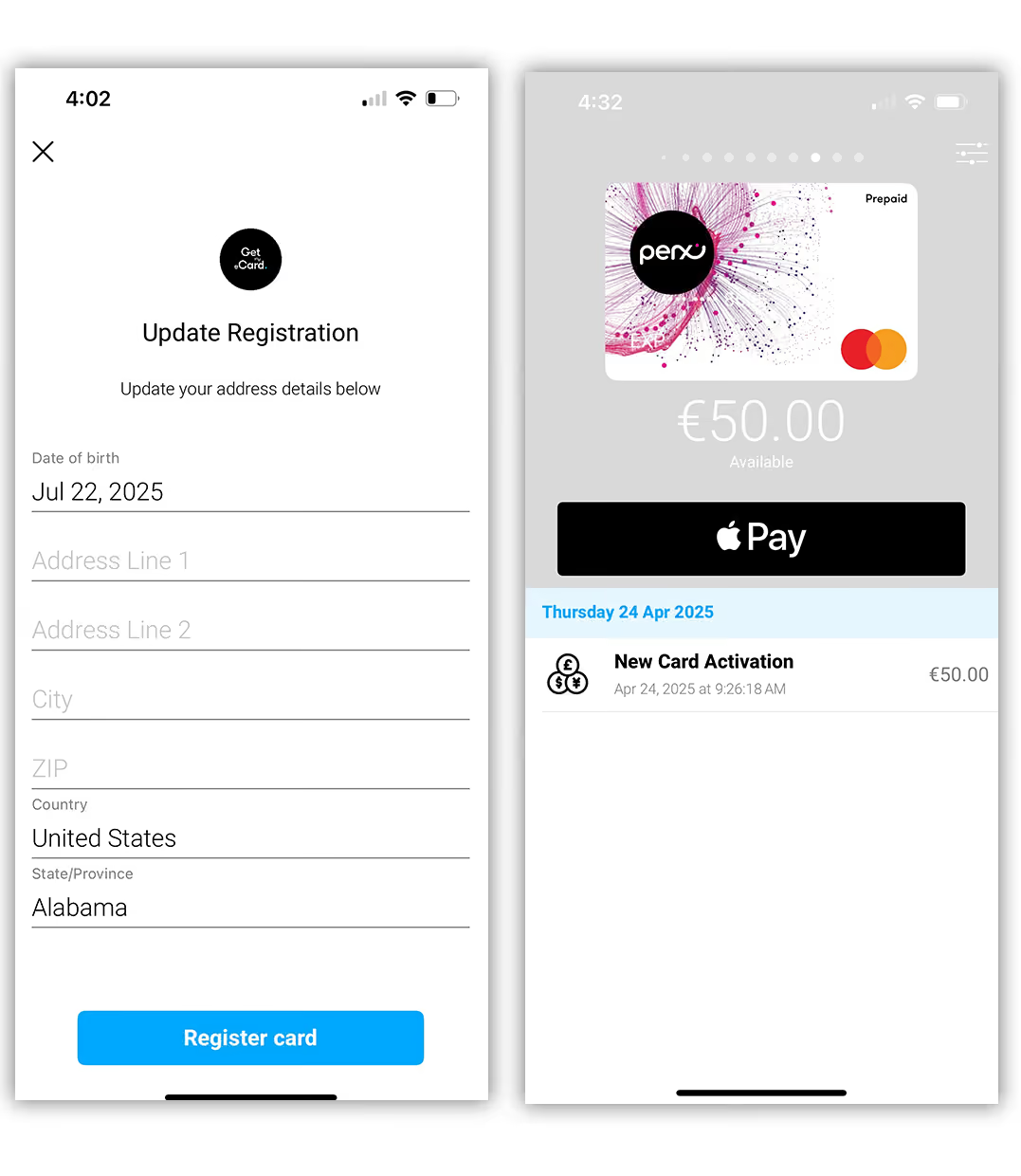
If the program requires registration, the user will be directed to the card registration screen.
Otherwise or following registration they will be directed to the Get My eCard card home screen.
Add existing Perx® Digital Card to Apple Wallet
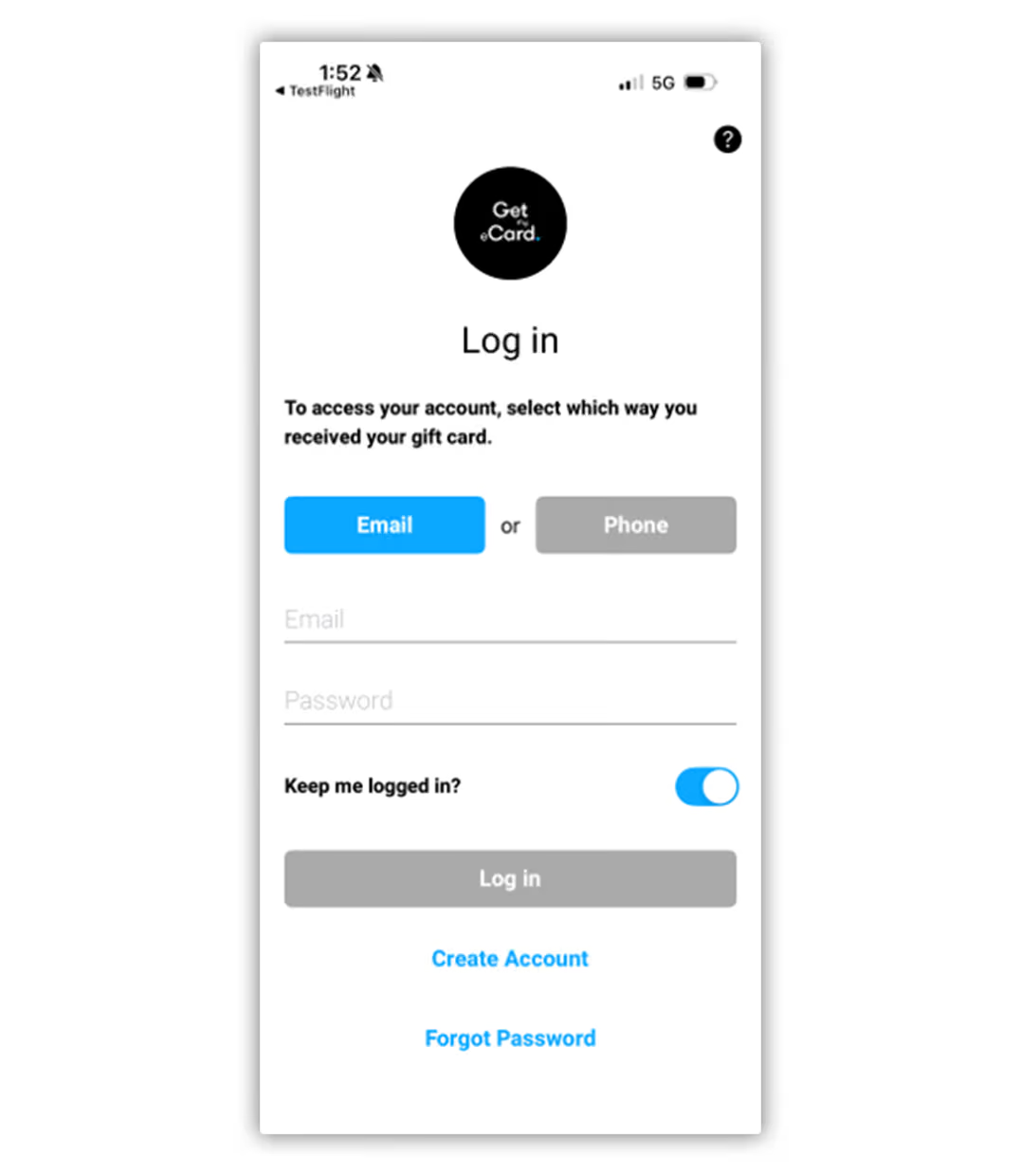
Log In
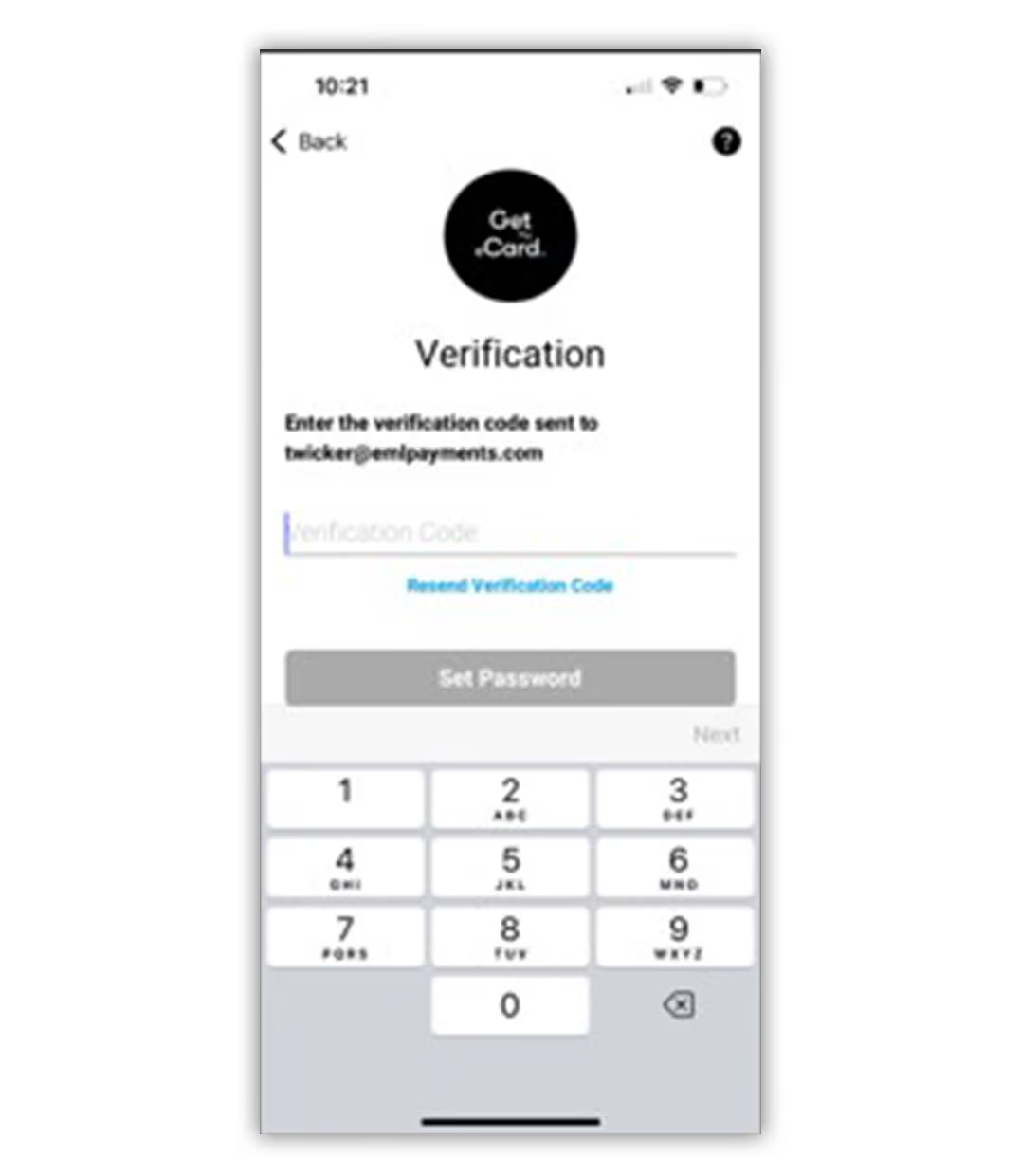
Enter Verification code
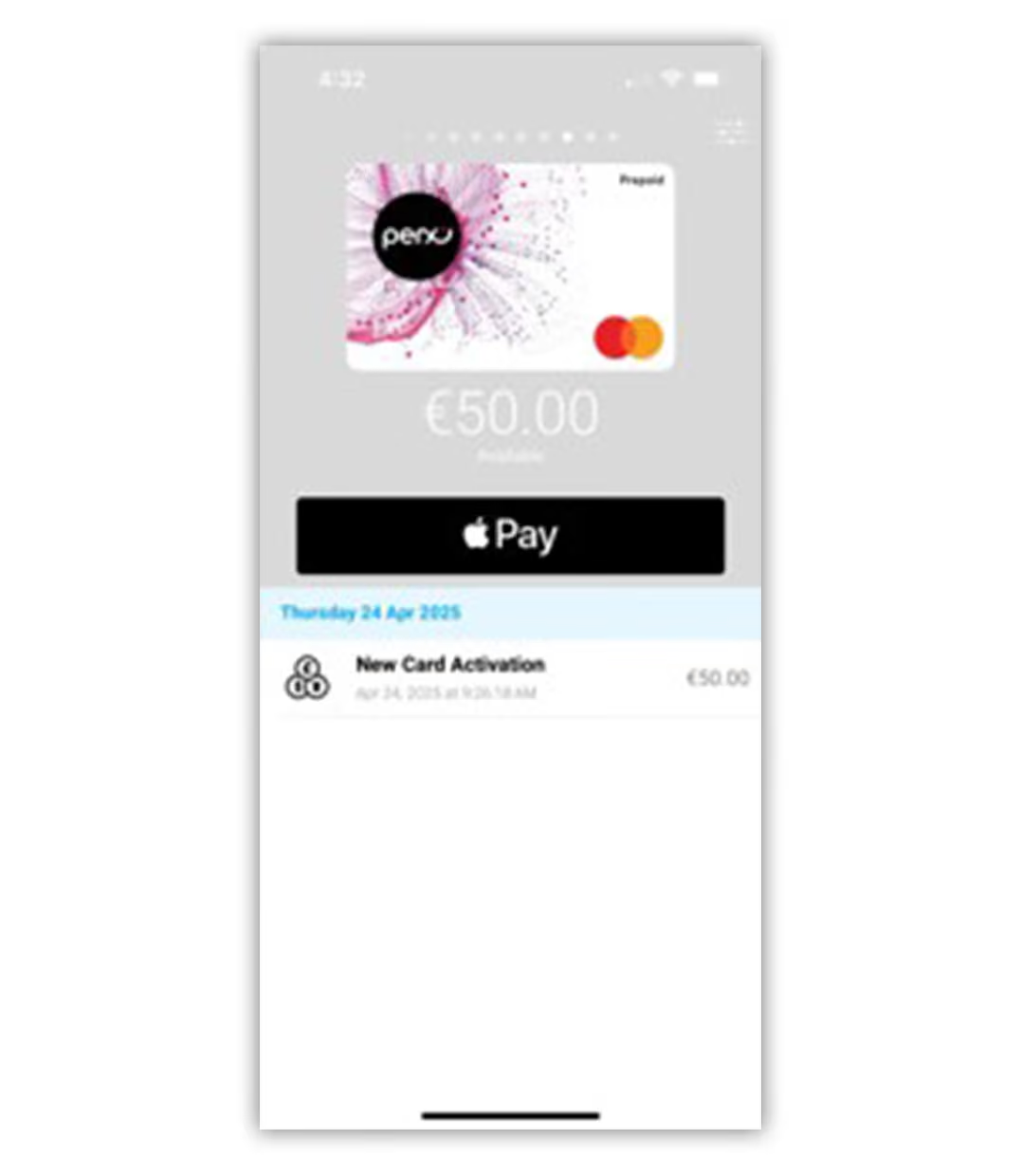
Select Apple Pay button
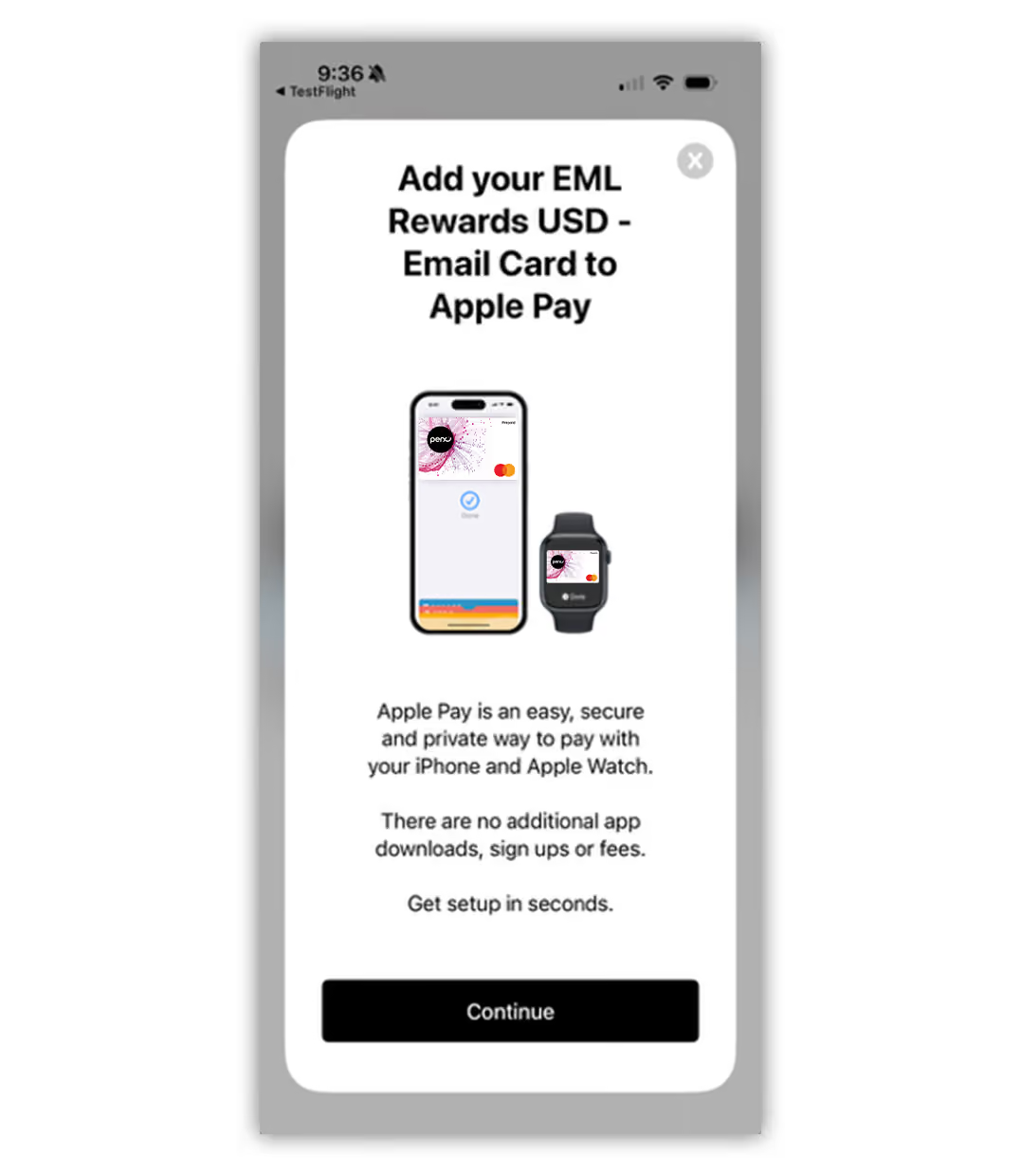
Select ‘Continue’ to add card to wallet
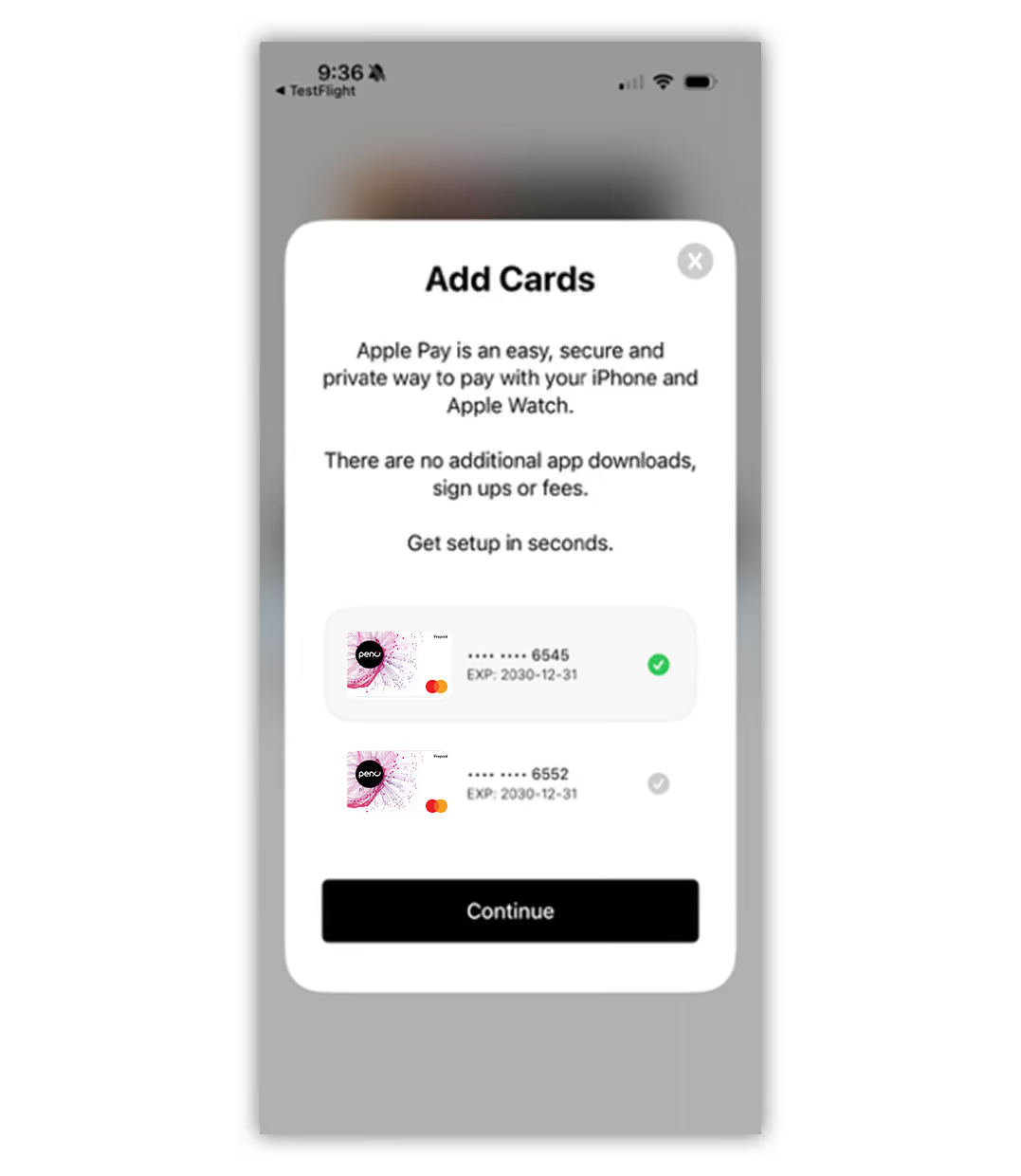
Cards available to add to wallet are displayed. Select card to add to wallet and select ‘Continue’
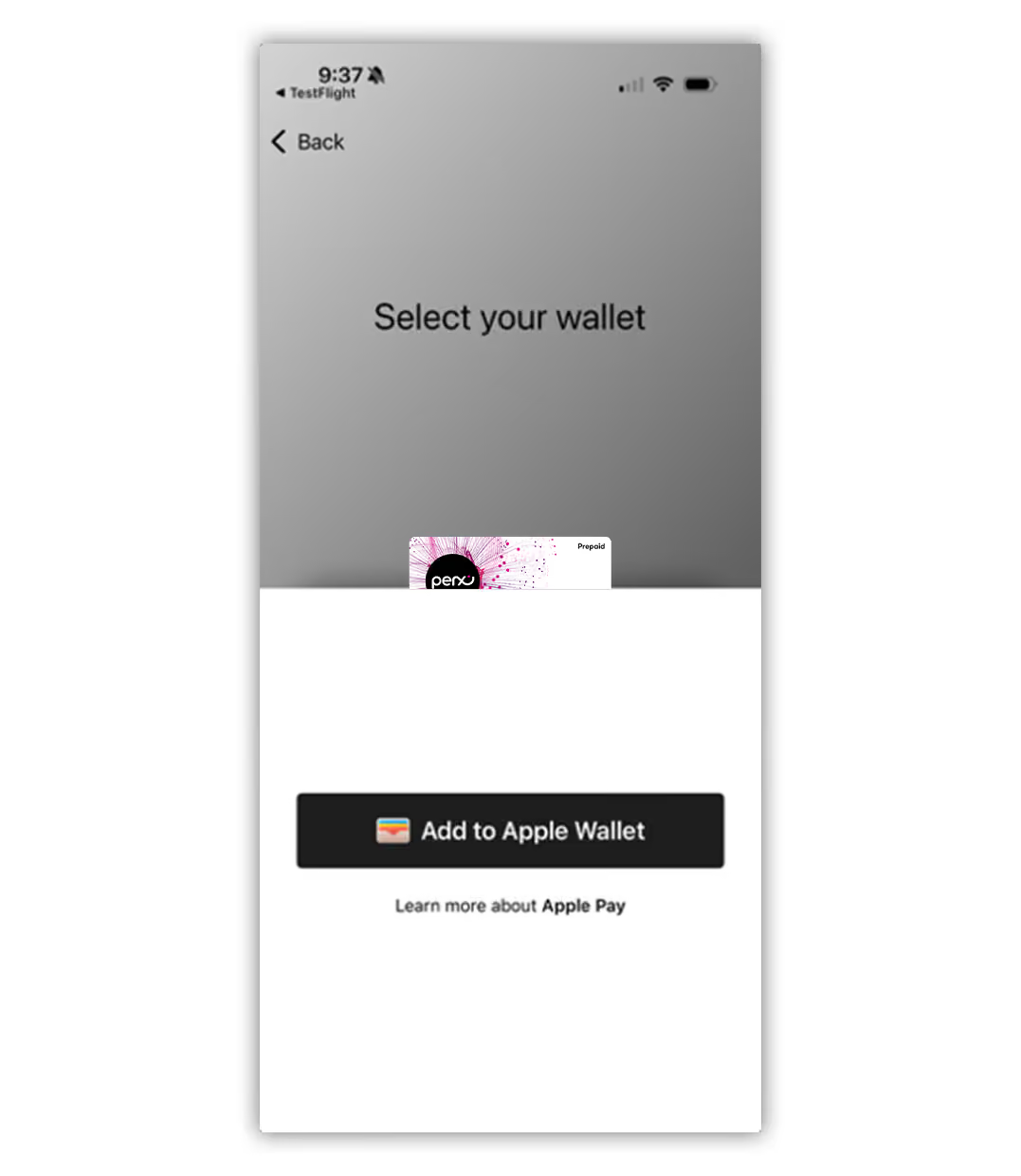
Select ‘Add to Apple Wallet’
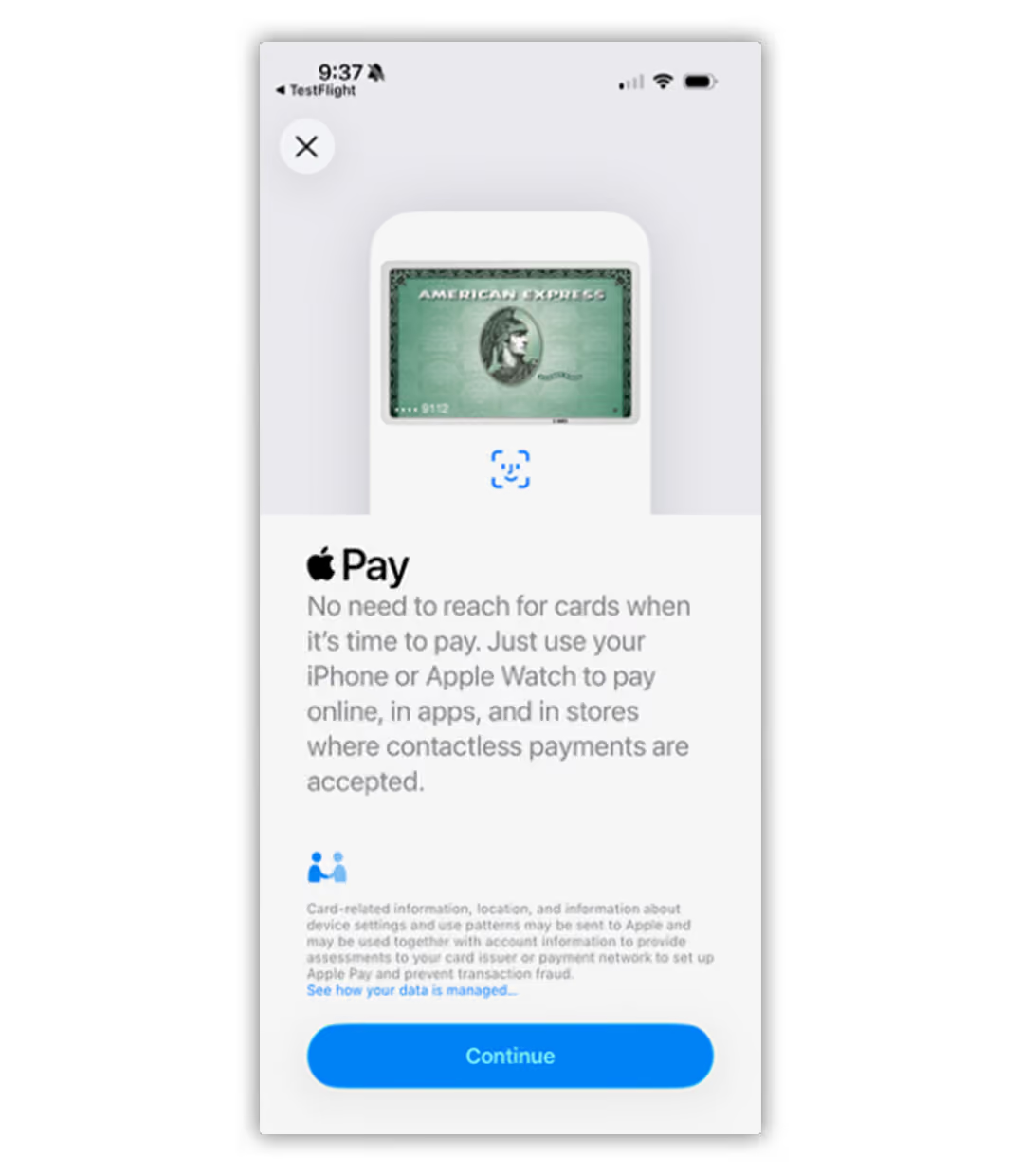
Select ‘Continue’
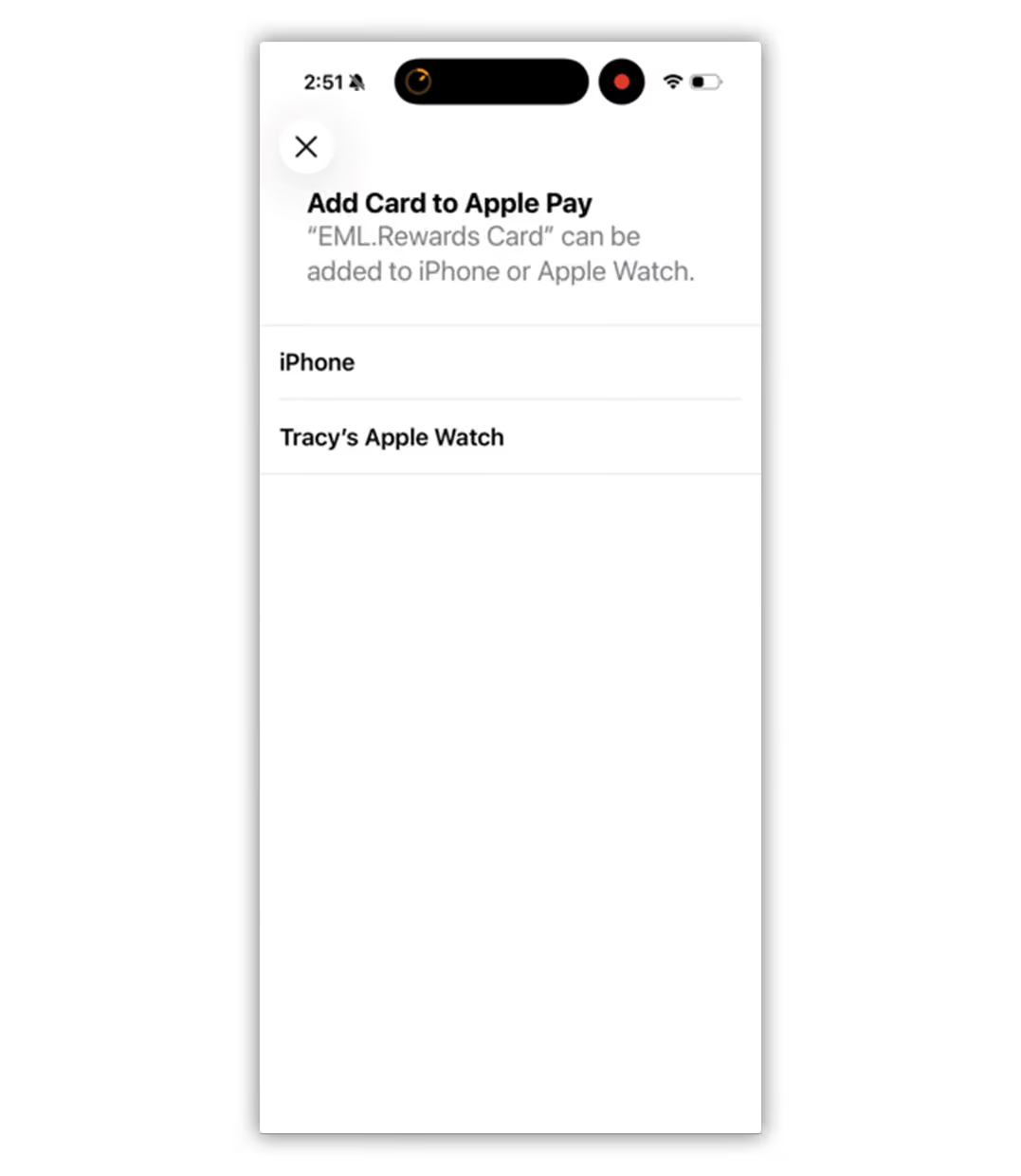
Select device to add card
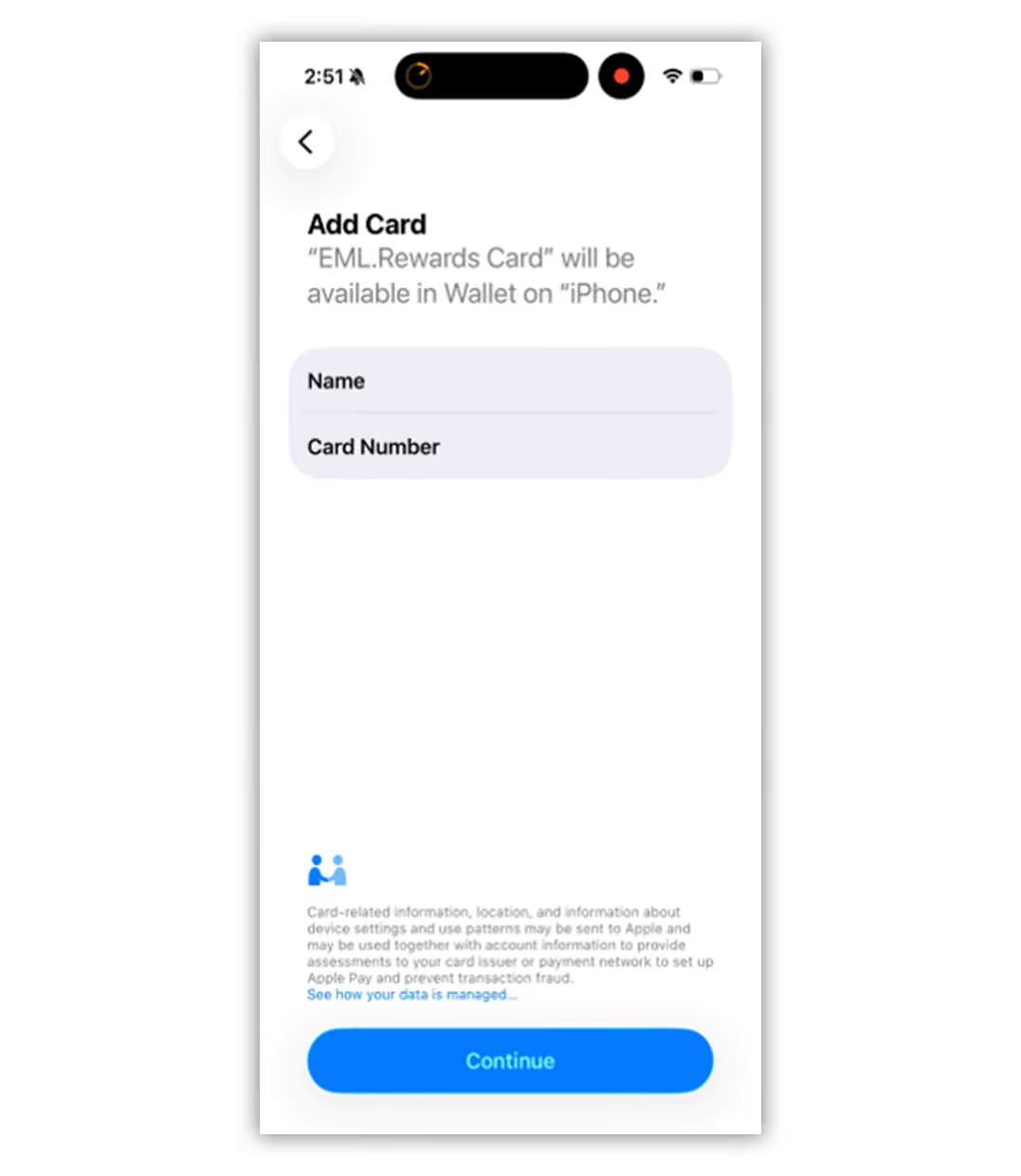
Select ‘Continue’
Review the T&Cs and Select ‘Agree’
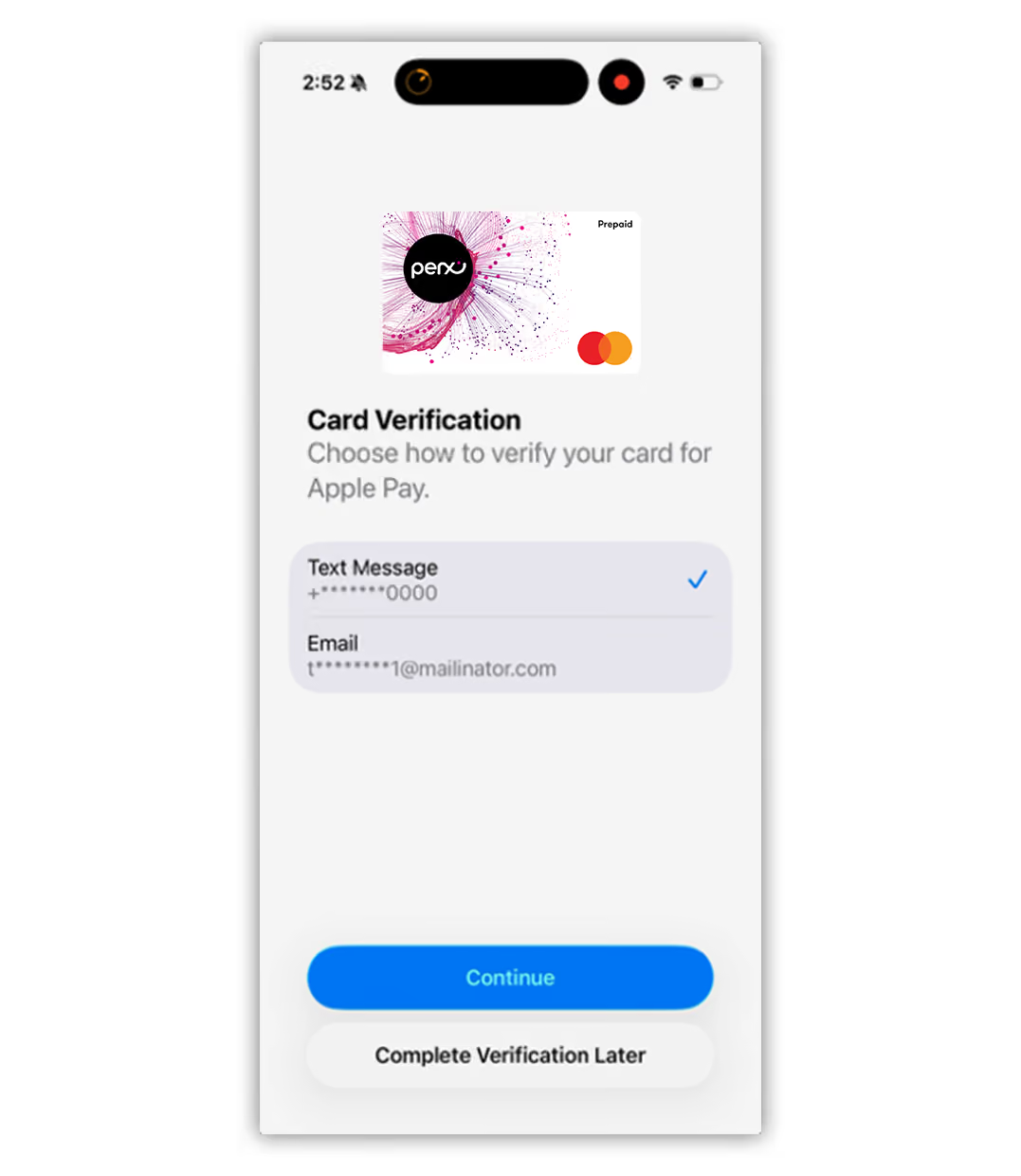
Select preferred delivery method to receive code and ‘Continue’
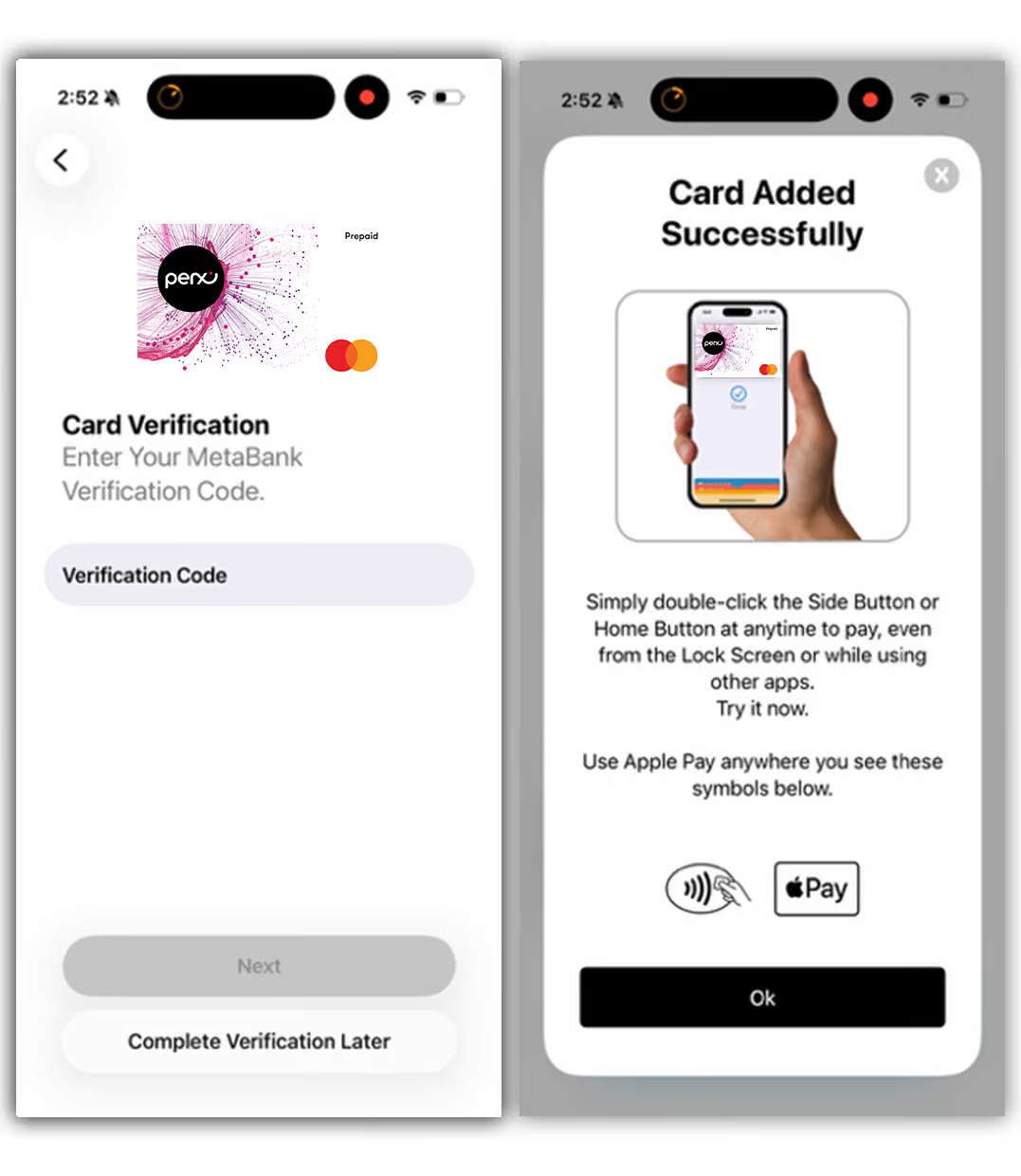
Enter verification code
Following verification code, the ‘Card Added Successfully’ pop up message will appear. Click ‘OK’